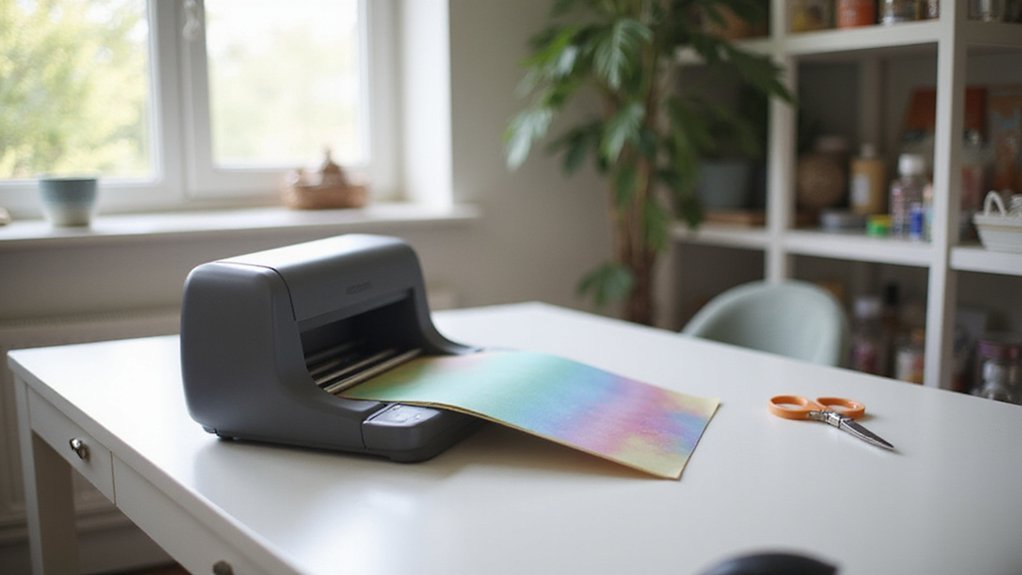
Wondering how to get started with a vinyl cutter? Whether you’re creating custom signs, decals, or apparel, mastering the basics is key. This guide will walk you through the simple steps—from preparing your design files to finishing your project—so you can confidently use your vinyl cutter and achieve professional-looking results.
Let’s dive into the process.
Prepare Your Design Files for Cutting
Before importing your design into the vinyl cutter software, ensure it is properly prepared for cutting. Convert all text to outlines using commands like Type > Create Outlines** or Shift+Ctrl+O. This step prevents font substitution issues and guarantees precise shape recognition. Keep your artwork in a vector format such as SVG or EPS, created in programs like Illustrator, with clean, simple lines for reliable importing. Organize your layout at 1:1 scale and stay within the cutter’s maximum width, such as 336 mm or 575 mm, to avoid scaling problems. Remove unnecessary paths, strokes, or tiny shapes that could lead to extra cuts or make weeding more difficult. Proper material storage is essential; keep your vinyl flat and protected to ensure consistent color matching and smooth cutting during production. Additionally, understanding permanent vinyl** properties helps in selecting the right material for long-lasting results.
Set Up Your Vinyl Cutter and Choose the Right Material
To set up your vinyl cutter correctly, start by ensuring the power connection is secure and turning on the machine. Connect the cutter to your computer using a USB or data cable, then install or select the correct plotter driver in your design software. Performing software calibration is essential to guarantee accurate communication and cut settings, so follow the calibration prompts carefully. Proper connection and driver installation ensure the cutter communicates effectively with your software, preventing issues during operation. Using materials that are compatible with your cutter’s specifications, such as vinyl filament, can improve the quality and durability of your cuts. Choose vinyl media that matches your cutter’s material thickness. The vinyl should be smooth and flat, free from wrinkles or curls, to prevent misaligned cuts. Select roll or sheet vinyl based on your project needs, making sure the material is properly aligned on the cutter’s rollers. Position the rollers parallel to the machine’s guidelines and over the grit rollers for consistent feeding. Additionally, understanding the cutting force settings and how to adjust them according to the material type can significantly enhance your cut quality. Proper media placement is crucial; ensure the vinyl is correctly positioned over the sensors and that the roller tension is appropriately adjusted. Before cutting your design, check that the blade is installed correctly and perform a test cut to verify the blade depth and cutting force. Regularly inspecting blade maintenance and replacing the blade as needed will help maintain precise cuts and avoid uneven or incomplete results.
Load Vinyl Correctly for Accurate Cuts
To load vinyl correctly for accurate cuts, you need to ensure proper orientation, alignment, and tension from the start. Begin by checking your vinyl storage: the roll should be oriented so that the cut-side, usually facing up, feeds into the cutter. Position the roll on the rear rollers and ensure the vinyl runs straight and parallel to the guides. This helps prevent skewing during cutting. Use enough slack—typically several feet—to allow smooth tracking and to avoid resistance or tangling. Lock the pinch rollers firmly onto the material, making sure they clamp properly to prevent slipping. Before commencing, verify that the vinyl lies flat without wrinkles or bubbles, extending a few inches past the rollers for added security. Proper loading not only improves cut accuracy but also reduces wear and strain on your cutting machine, helping maintain its optimal performance over time. Ensuring the proper tension is crucial, so ensure the vinyl is neither too tight nor too loose in the guides. Paying attention to these factors and understanding the role of the cutting mat can significantly enhance your project’s success by providing a stable cutting surface. Additionally, regularly inspecting and cleaning your vinyl rollers can further improve the feeding process and prolong the lifespan of your equipment, making your projects more consistent and professional-looking.
Send Your Design to the Cutter With Proper Settings
Connecting your software to the cutter is the first step toward a successful cut. Ensure your device is properly linked via USB or Bluetooth, depending on your model. Open your cutting software and load your design for final verification. Make sure the software recognizes your cutter and displays the correct status. Confirm that the design fits within the cutting area and that the dimensions are correct. Before sending the file, check all cutter settings, such as blade depth and force, to prevent mishaps. Set the origin point and align your vinyl properly. When everything appears correct, navigate to the send command, choose the right cut option, and click “Send.” Proper verification of your design and correct settings ensure a clean, precise cut every time. Additionally, performing a test cut can help verify the accuracy of the settings before proceeding with your main design to avoid errors. Considering the importance of transfer tape, ensuring your backing and transfer materials are compatible can significantly improve your project results.
Monitor the Cutting Process to Ensure Quality
To ensure your vinyl cuts turn out perfect every time, closely monitor the cutting process. Start by tracking material movement to detect shifting, bunching, or slippage, and verify that pinch rollers are aligned with the grit roller bar. Regularly clean rubber wheels to maintain optimal grip. Pre-feed enough vinyl from heavy rolls to prevent slippage and keep the roll neatly wound and straight. During cutting, watch for signs of deterioration in cut quality—if edges become rough or detailed parts start to distort, reduce the cutting speed. Stop immediately if jagged or rounded corners appear, indicating a blade issue or misalignment. Adjust the blade offset to around 0.3 millimeters as needed, then run a test cut to confirm quality. Regularly inspect the blade and holder for dullness, nicks, or damage, and replace them when necessary. Maintaining proper machine calibration and consistent blade maintenance is essential for achieving clean, precise cuts every time. Ensuring the machine is properly calibrated helps prevent cut errors and maintains overall quality. Additionally, paying attention to blade alignment can significantly improve the finish of your cuts and prolong the lifespan of your blades. Being aware of material safety considerations can also help prevent issues related to different vinyl types or manufacturing defects.
Unload and Remove Your Cut Vinyl Safely
After completing your vinyl cut, unload and remove the material carefully to avoid damage. First, press the unload or offline control to stop the cutter completely before removing the vinyl. Wait until you see that it has fully stopped to reduce the risk of snagging or tearing.
Pull the vinyl out slowly, keeping it aligned with the rollers to prevent catching on blades or rollers, especially if the material is wide. Use both hands if needed to support the vinyl and maintain a straight exit path. This helps keep the material flat and minimizes stretching or tearing. Proper workspace organization also helps streamline the process and reduces the risk of accidentally damaging the vinyl during removal. Being mindful of machine types can help you better understand which tools and settings are most suitable for your specific cutter model. Additionally, understanding the material characteristics can improve handling and result in cleaner cuts and easier removal.
Trim the finished design with scissors or an X-Acto knife, making sure the edges are clean and square. This makes handling easier and prepares the vinyl for application or storage. Handle the cut vinyl gently, supporting delicate sections—particularly if there are intricate or fine details—to prevent tearing.
Before removing the vinyl entirely, verify that the cut is complete and that the tool calibration remains accurate. Proper workspace organization, such as keeping the area clear and tools within reach, contributes to safe and damage-free removal of your finished vinyl. Proper workspace organization also helps streamline the process and reduces the risk of accidentally damaging the vinyl during removal.
Weed Excess Vinyl to Reveal Your Final Design
Proper weeding is essential for revealing a clean and sharp vinyl design. Start by letting the cut vinyl cool briefly so the adhesive sets, which makes it easier to weed and enhances the contrast between the design and the background. Use a bright light or lightbox to identify the cut lines clearly. Carefully peel away the excess vinyl from a corner or edge, working slowly and controlling your pull to prevent lifting or damaging your design. When removing small inner pieces or negative spaces, take your time, working one tiny section at a time. Inspect the finished area for stray fragments and use tweezers or a hook to clean up edges, ensuring your final reveal is crisp and precise. Proper weeding techniques help to avoid tearing or damaging delicate designs during removal, leading to a more professional look. Additionally, choosing appropriate vinyl sheet costs and materials can also influence the quality of your final result.
Transfer and Apply Your Vinyl Decal Perfectly
Proper transfer and placement are crucial for a professional-looking vinyl decal. Start by thoroughly cleaning and drying the surface to ensure maximum adhesion and prevent bubbles later on. Carefully apply transfer tape, pressing firmly with a scraper or credit card to make sure the vinyl bonds well with the tape. During installation, work from the center outward to smooth out wrinkles, bubbles, or uneven spots. If bubbles do form, gently lift the decal and re-smooth the area. For curved surfaces, begin from the middle and work outward to follow the contours smoothly. Peel back the transfer tape slowly at about a 45-degree angle, maintaining light contact to avoid lifting the edges. Also, using the right surface type can enhance the adhesion, which is why choosing a suitable surface like glass or metal is important for a clean finish. Paying attention to heat transfer vinyl shine and side orientation is essential, as it influences the final appearance of your decal. After removing the tape, inspect the decal and press down any lifted areas to achieve a clean, sharp professional finish.